Skip to content

ChatGPT

Reach your Archly project from a ChatGPT conversation: send your sketch, approve the job once you see its credits and find the result in your project.

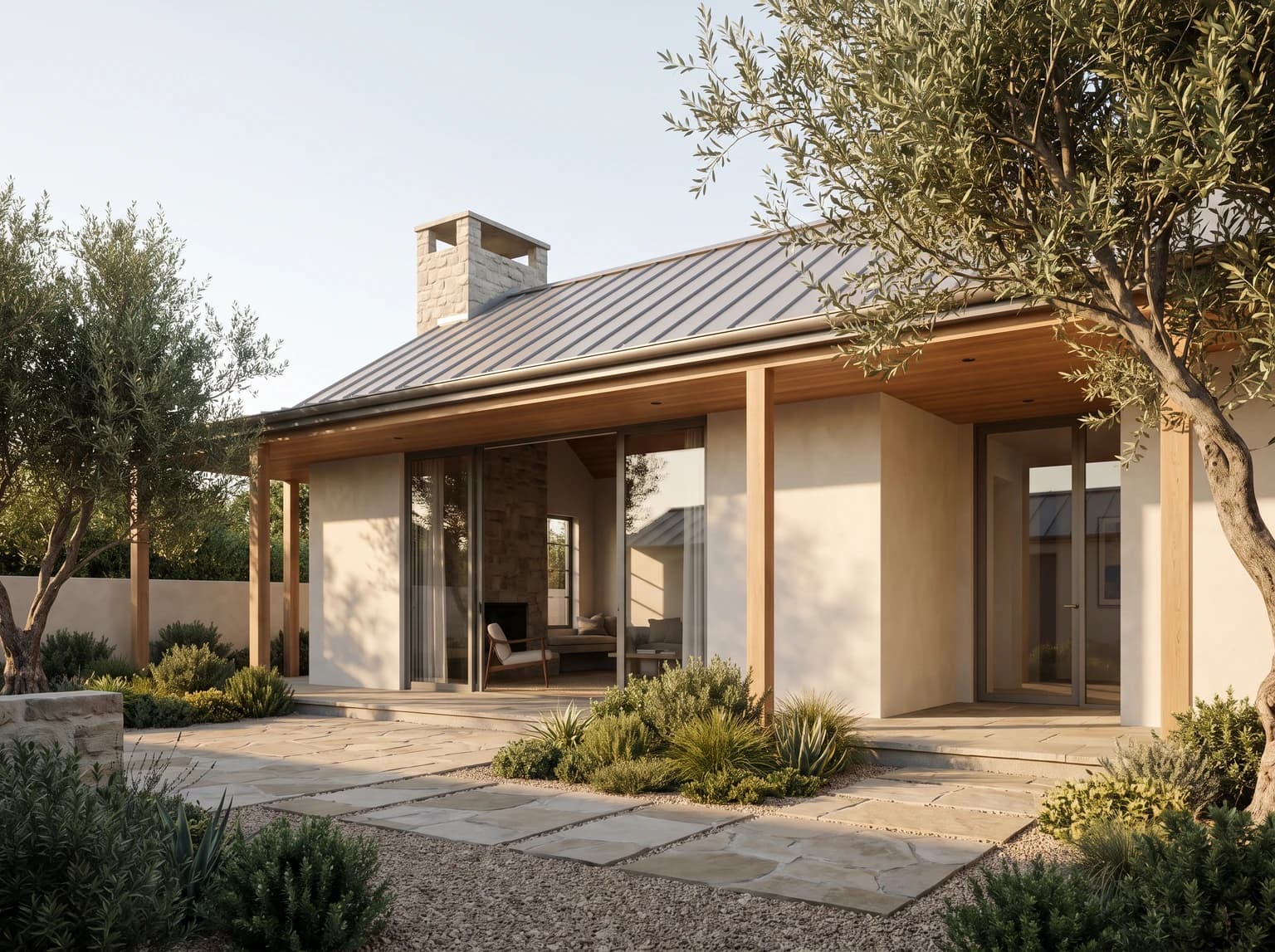
The same house in pale plaster, glass and timber soffits, afternoon light
Render · Nano Banana Pro
Connection address
https://archly.ai/mcp
Daily limit
200, 500 or 1,000 credits, or no limit
Access
Pro pack, 30 days, personal projects

How it works

  1. Open Settings > Connections in Archly, press Connect beside ChatGPT and copy the connection address.
  2. Open Apps in ChatGPT's settings; adding a custom MCP app may need Developer mode. Name it Archly, use the address you copied and choose OAuth for authentication.
  3. Sign in on the Archly page that opens, review the permissions and choose a daily credit limit.
  4. Ask in the chat for a render, an edit, an upscale, a short video or 3D; the job starts when you approve the credit estimate and the result appears in your project as a card.

Your project in the chat

Ask for your projects, credits, the models you can use or past generations; where ChatGPT can show it, they arrive as a gallery with download and project links. If a sketch cannot pass through the chat, open the project link and add it in Archly.

MCP and API
Only your personal projects connect; office and shared projects stay in Archly. Video and 3D start from an image in the project. Custom connector support depends on your ChatGPT plan, and a ChatGPT subscription is separate from Archly credits.