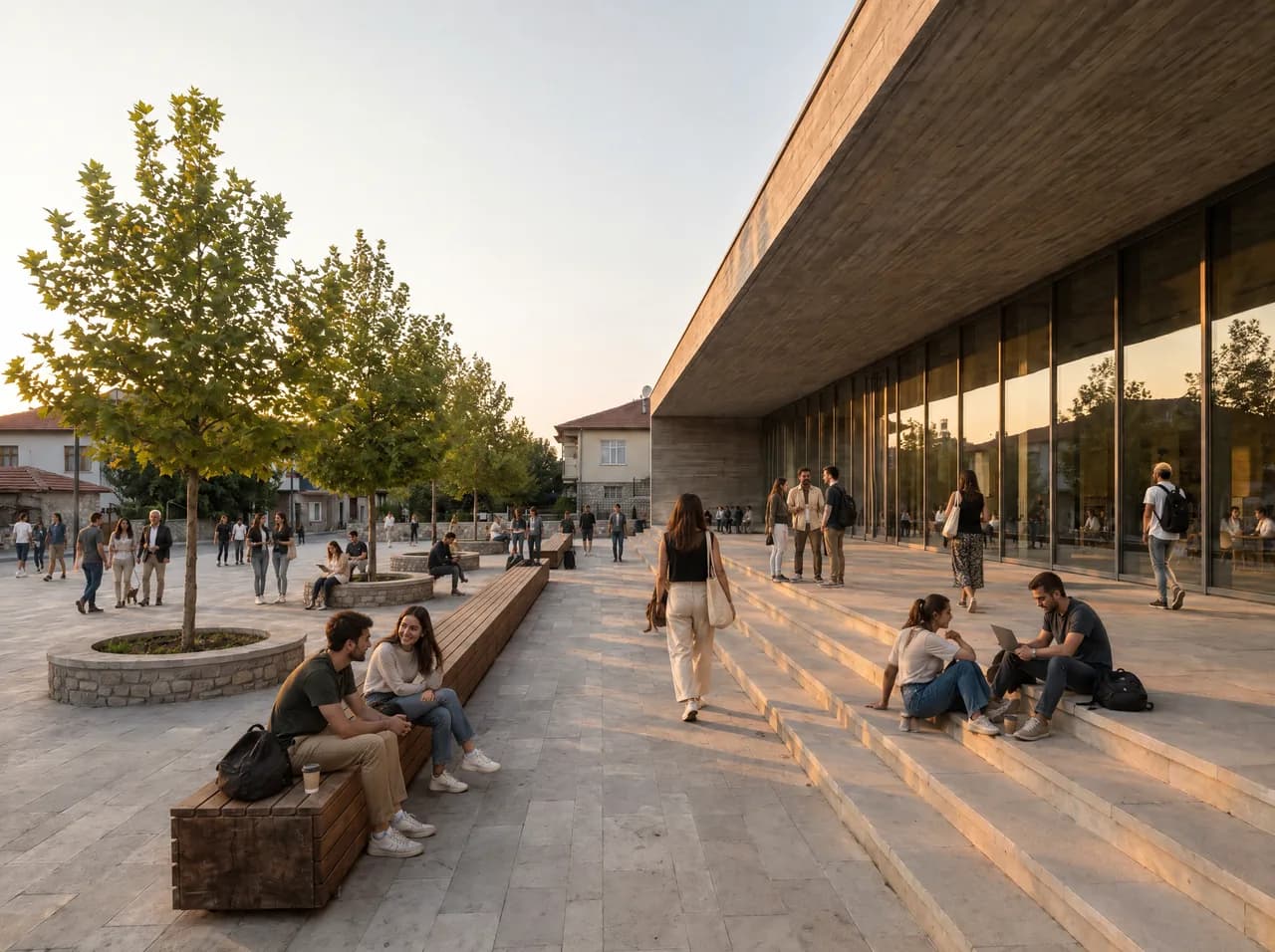
What stays
Every pixel outside the target is copied back from your picture after the run, so it stays exactly as it was; on the canvas, Show difference marks what changed.
Light a fixture, brighten a dark corner or soften a blown-out spot in a render; the change stays in the area you mark and the rest of the picture is copied back from the source.
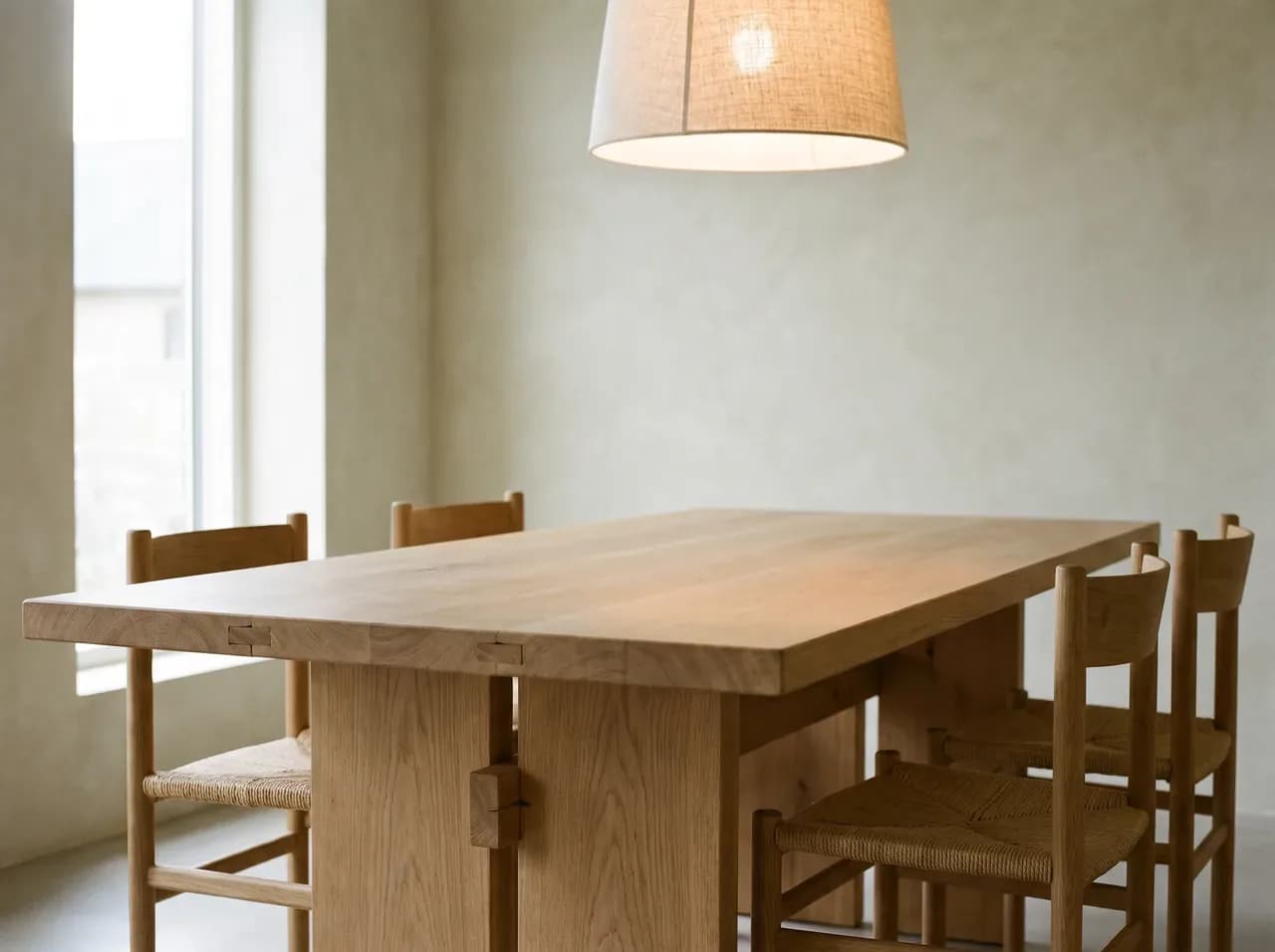
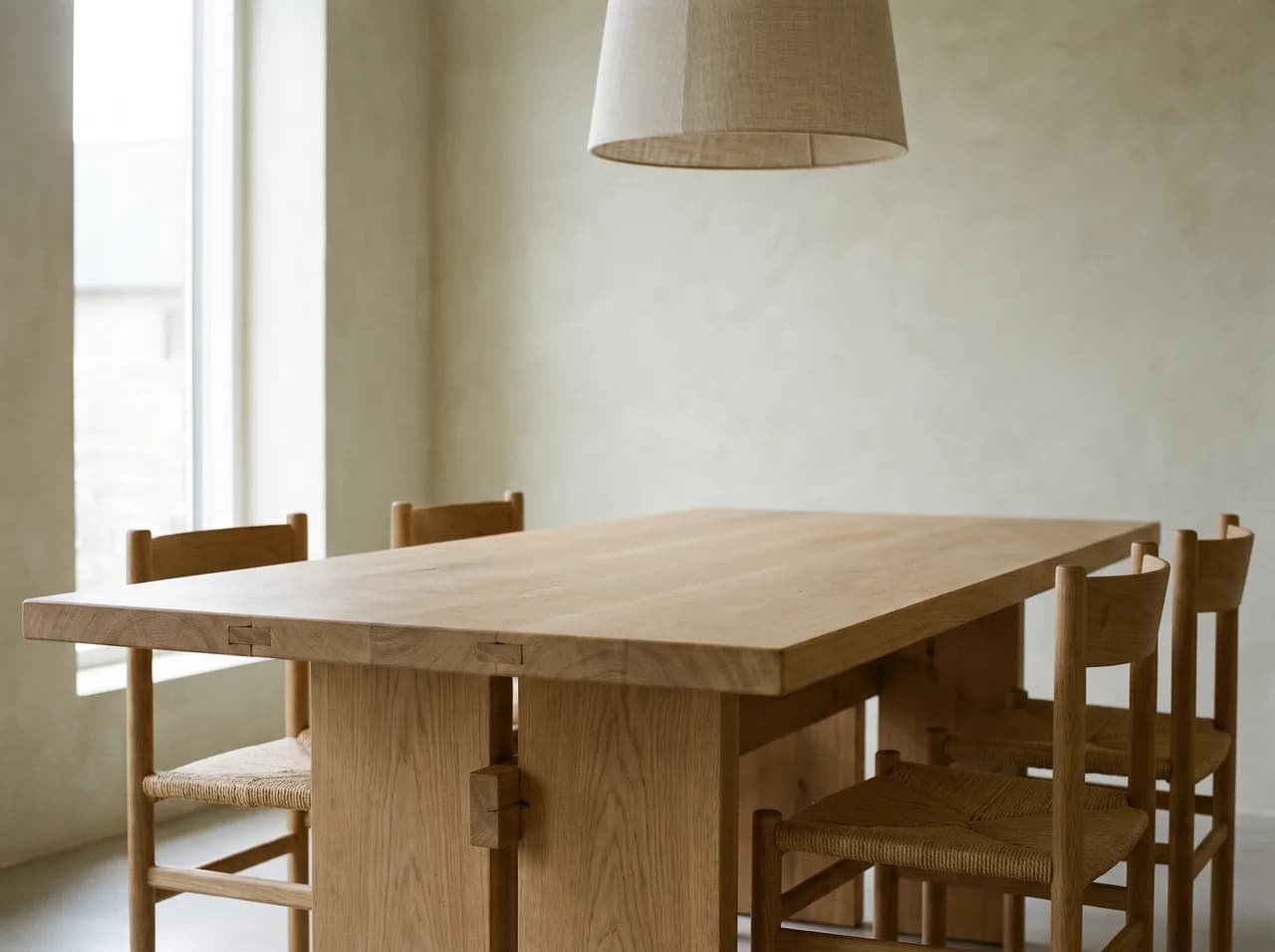
Every pixel outside the target is copied back from your picture after the run, so it stays exactly as it was; on the canvas, Show difference marks what changed.
Name the target as you would point at it (the pendant over the table); say which one when there are several of a kind.
Reflective surfaces and very fine material differences may need a second run; the result is not an exact product guarantee.
Starts on Nano Banana 2.1; you can choose another model in Settings, such as Nano Banana Pro for more detail.
Example result. Results vary with the image.