Layers
Mark objects in one picture and change them all in one run.
Before you start
One image: drag, paste or choose it, or take one from Recent results or Uploads. PNG, JPEG or WebP; not a panorama.
Steps
- Open Layers in the sidebar's tools and add your picture under Image.
- Press Find objects; the parts are listed under Found objects.
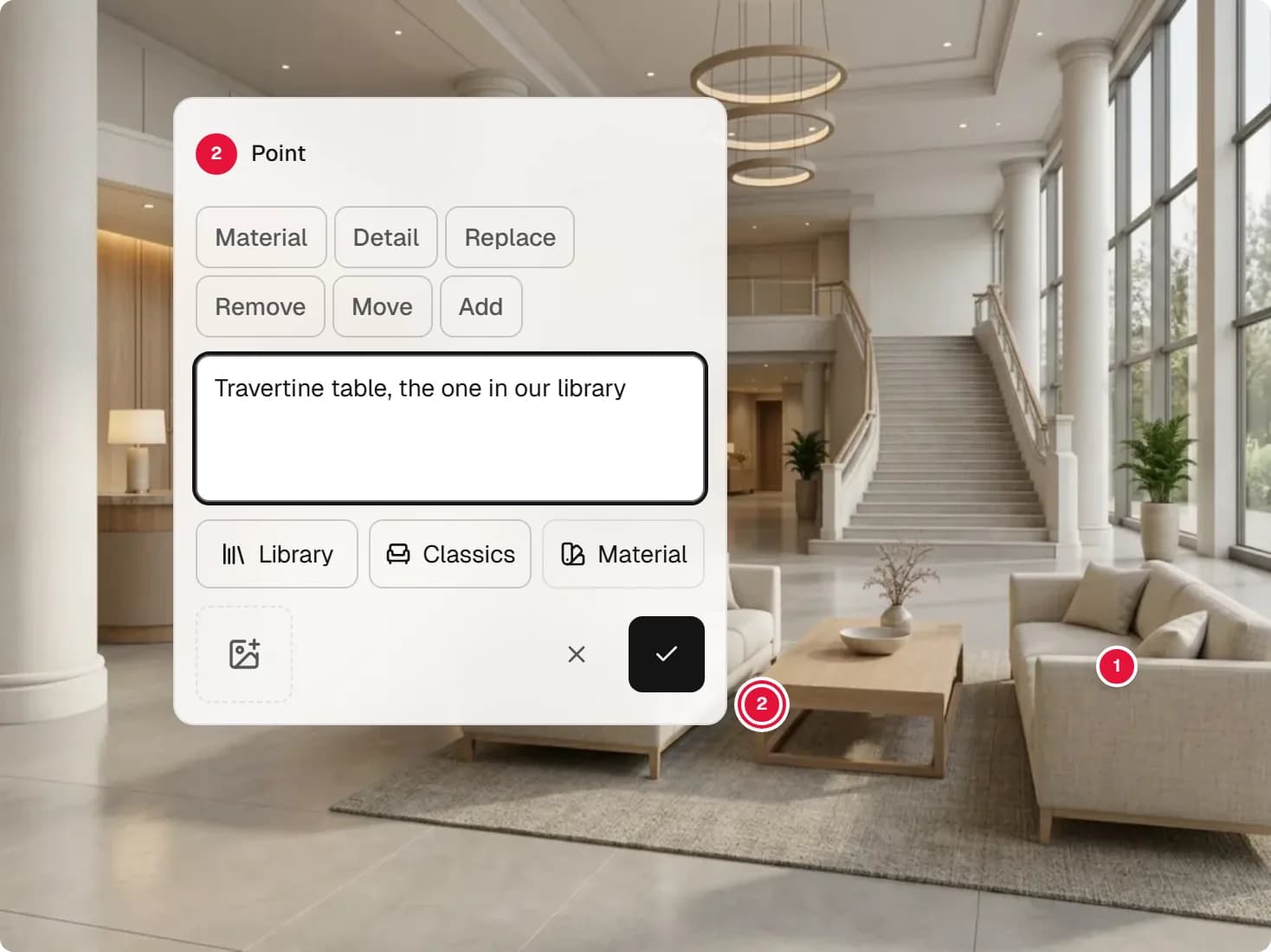
- Click a part on the picture or in the list to drop a marker.
- Under What to do, choose Material, Detail, Replace, Remove, Move or Add; write a note or add a reference from Library, Classics or Material, then Done.
- Press Apply markers, then open Compare to see Before and After.
- What you get
- The edited picture in its own project, beside the source. Open in canvas opens its Layer edit card.
- What to keep in mind
- Only the marked objects are asked to change; check the rest of the picture too. If the picture changes, clear the markers or place them again.